search_api_autocomplete

Platform for exchanging files with the FSMA - user's guide

PDF-version

Version 08/09/2026

The Financial Services and Markets Authority (hereinafter, the “FSMA”) has set up a Platform to facilitate and secure the exchange of large or numerous files with its external contacts (hereinafter, the “Platform”).

The purpose of this guide is to explain the purpose and operation of the Platform.

  • When does the FSMA use the Platform?

    The FSMA uses the Platform to exchange large (more than 10 MB) or numerous (more than 10) files in a secure manner.

  • Remarks on privacy management and security

    The personal data that the FSMA receives when exchanging files through the Platform is processed in accordance with its privacy policy.

    When using the Platform, an account must be created for each user. The following data are stored on the Platform for each user: their surname, first name, email address, user identification, and language. If necessary, for additional security, the user's mobile number is also stored, which allows for two-step authentication by means of a code sent via SMS. These data are retained for no longer than is necessary for the purpose of data exchange. If no files are exchanged for three months, the data is deleted from the Platform, and the user's account is also deleted (if data are to be exchanged again later, a new account must be created).

    Files exchanged through the Platform are sent by secure means. Only persons authorized by the FSMA have access to the files. The files are removed from the Platform as soon as possible and in any event at the latest within one month of the start of the data exchange. The Platform may not be used to store files. It is therefore only a place where files are temporarily placed during the exchange process.

    All actions carried out by a user on the Platform (logging in, downloading, uploading, deleting, etc.) are recorded for a maximum of 10 years.

    The external Platform selected by the FSMA meets all appropriate security standards.

  • How do you log on to the Platform?

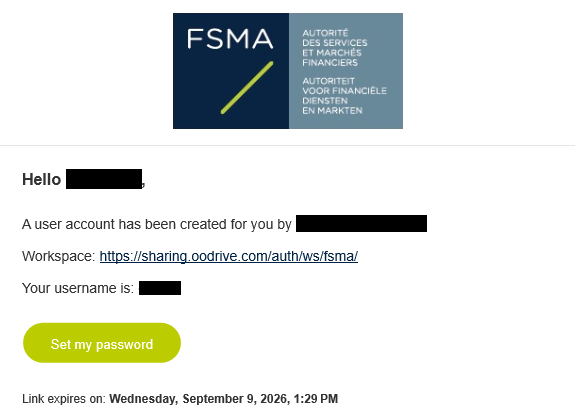
    The FSMA manages access to the Platform. When a user is granted access to the Platform, he or she receives an email stating that a user account has been created. This email also contains the user's identification and a request to log in. If you have not received that email, you should contact your FSMA contact person. Your contact will then send you the email.

    How do you proceed?

    When you log on for the first time:

    1. Use the user identification (in principle your e-mail address) that you received by email when you created your user account.
    2. Click on the Set my password button.
        

      Printscreen Oodrive: set my password
    3. On the web browser page you land on, you will be asked to enter and confirm a password before clicking the Submit button.
    4. Click the Log in button to access the login page.
    5. Enter your user ID (your email address) and password, then click Log in.
    6. If SMS dual authentication is configured for your account, on the next screen enter the code received via SMS and click Log in.
    7. Read and accept the terms and conditions of use by clicking Accept. The general terms and conditions contain URLs for the FSMA privacy policy and to this user guide. Please copy/paste them into your web browser and read the relevant documents. Your use of the Platform means that you have read, understood and accepted both documents.

    After you have logged in for the first time:

    1. Use the user identification you received by email when you created your account (in principle your email address).
    2. Go, via your web browser, to the login page of your work environment:  https://sharing.oodrive.com/workspace/fsma.
    3. Enter your user identification (in principle your e-mail address) and password, and then click on Log in.
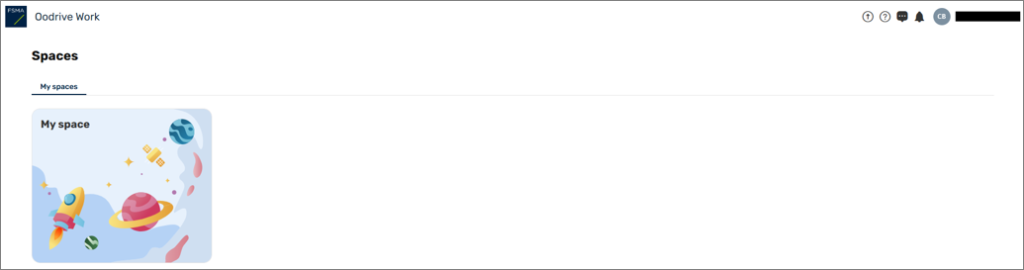
    4. Click on My space.
    Printscreen Oodrive: my space

    It is recommended that you use Chrome as your web browser.

    If you have forgotten your password, click Forgot your password? Enter your user identification (in principle your e-mail address) and click on Send. You will then receive an email, which will allow you to reset your password as when you first logged in.

  • What is a 'collaborative folder'?

    In order to exchange files with you in a secure manner, your FSMA contact has given you access to a collaborative share/folder that he/she has created on the Platform. A collaborative share/folder is a common area where you can find the files you need to download or where you can upload the files requested by the FSMA, as the case may be.

    Your access rights to these files are defined by your FSMA contact.

    In accordance with the rights granted, you may receive notifications of the activities carried out in the collaborative share/ folder made available to you.

  • How do you access a 'collaborative folder'?

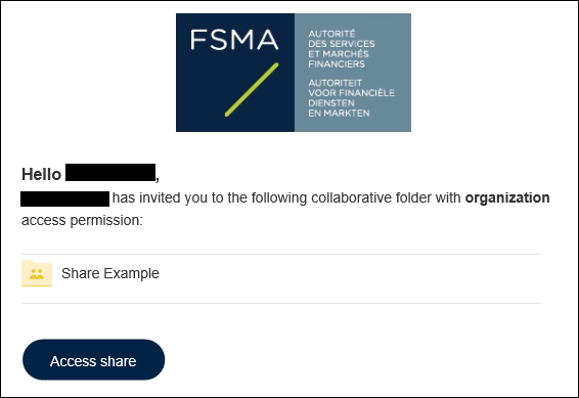
    To access a 'collaborative folder', you must have received an email from your FSMA contact stating that a 'collaborative folder' has been made available to you.

    Printscreen Oodrive: invitation collaborative folder

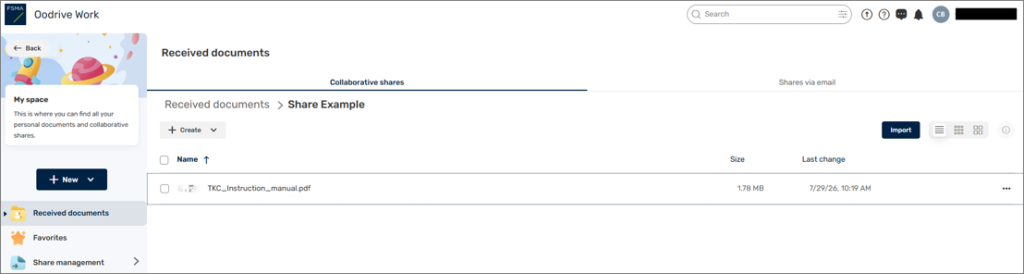
    Click on Access to share. If you are not already logged into the Platform, log in as explained earlier. You will land on a page that looks like this:

    Printscreen Oodrive: list of received documents


  • How do you access your 'collaborative folders'?

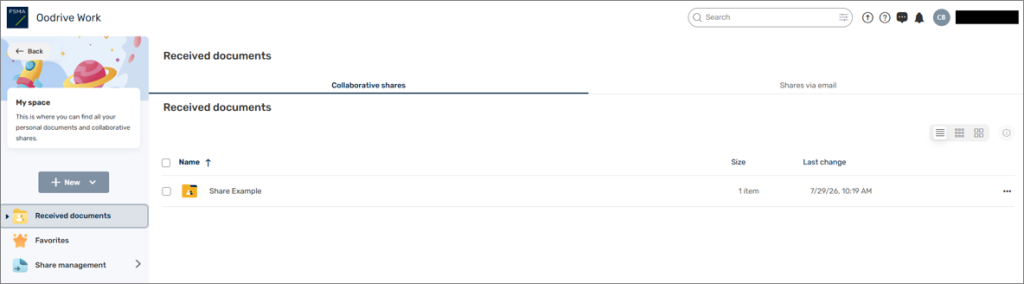
    Once you are connected to the Platform and have accessed My space, you can see the list of collaborative folders that you can access through the menu Received documents.

    Printscreen Oodrive: list of collaborative folders
  • How can you download files or folders?

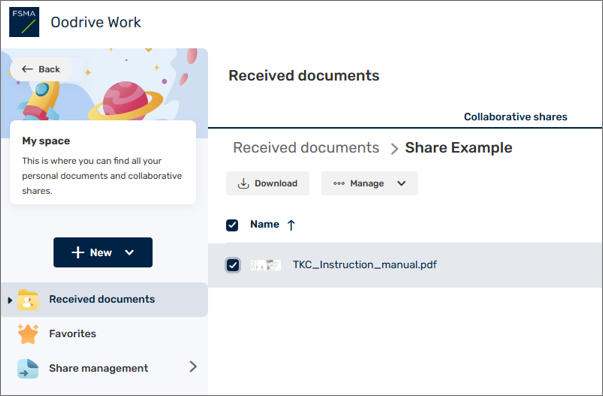
    In accordance with the rights granted to you by your FSMA contact, you can download the files and folders in a 'collaborative folder'.

    To do so, select the file(s) or folder(s) to be downloaded and click Download on the next screen:

    Printscreen Oodrive: download files and folders

    To download multiple files and folders, you can use the shift and ctrl keys.

  • How do you add files or folders?

    In accordance with the rights granted to you by your FSMA contact, you can add files and folders to a 'collaborative folder' yourself.

    If you add files and or folders to a 'collaborative folder' that has been provided for you, your FSMA contact will receive an email notifying them of this, and they can find those files and folders on the Platform.

    To that end

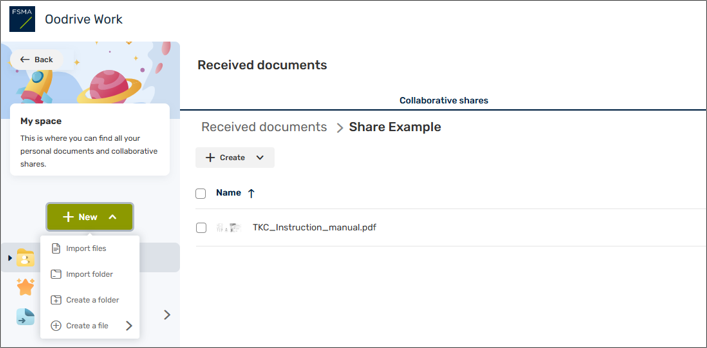
    1. Browse through your collaborative folders and select the folder to which you want to add a file;
    2. Click on New, then select Import Files

      Printscreen Oodrive: import files
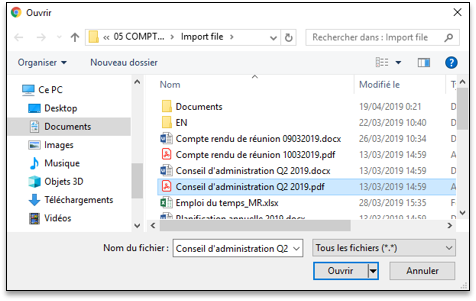
    3. Browse the tree structure of your post's files and select one or more files by holding down the Ctrl key; 

      Printscreen Oodrive: select files in the Windows file explorer
    4. Click on Open.

    If you prefer, you can also drag and drop files from your PC to / from the Documents section of the Platform.

    Make sure that the file name or folder name is not too long and does not contain any special characters ( / : * ? " < > | ).

    If you place an archive file (with extension zip, tar, ...) on the Platform, please send to your FSMA contact the list of files contained in that archive file. This will allow him or her to verify that the archive file retrieved is complete.

  • How do you prevent disconnection during overly large file transfers?

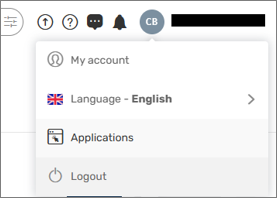
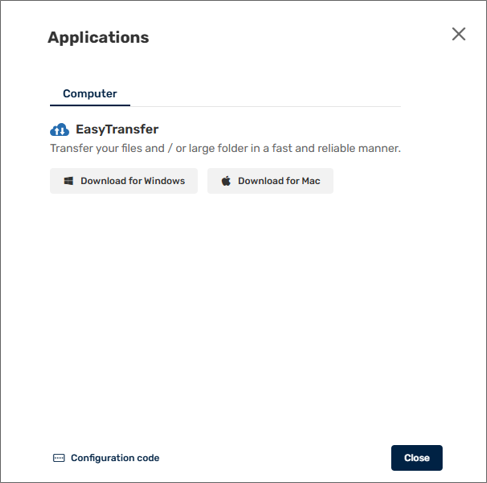
    If you need to send very large files, it is recommended that you download the EasyTransfer plug-in. That plug-in guarantees that the connection to the Platform will not be disconnected during the transfer. You can download this plug-in by clicking on your profile, then selecting Applications:

    Printscreen Oodrive: select 'Applications'
    Printscreen Oodrive: select the appropriate plug-in for your computer (PC or Mac)

    After selecting and installing the appropriate plug-in for your computer (PC or Mac), you will be prompted to connect EasyTransfer to your browser (to do so, you must enter the token suggested in the pop-up). Once the connection has been established, you will receive a message informing you that EasyTransfer has been connected to your browser. EasyTransfer will then be used for your transfers without any further action on your part.

  • How do you change your personal data (name, email address, password, language, etc)?

    Click on your initials or your name at the top right of the screen and then click on My Account. Then click on Change Profile. If you change your phone information, make sure you include a mobile phone number (on which you can receive text messages). Be sure to include the international area code first (+32 for Belgium). Changing the language in your Profile will change the language of emails sent by the Platform.

    To change the Platform language of your current connection, you need to: 

    • either go to the menu behind your initials or your name at the top right of the screen and click on Language; or
    • create a new connection and change the language on the first screen. We recommend that you save the URL with the changed language settings (&locale=en for English) in your Internet browser favorites and use it for each new connection with your selected language.
  • How do you log out?

    Click on your initials or your name at the top right of the screen and then on Logout. If you don't, the connection will be automatically disconnected after 30 minutes of inactivity.

  • What are the solutions to the known technical problems?

    If you cannot connect to the Platform, please check that all URLs starting with https://sharing.oodrive.com are authorized by your proxies/firewalls.

    If you get a blank page after entering your credentials, please check that your browser authorizes the execution of JavaScript.

  • Where can you go for help?

    If, in addition to this user guide, you need additional help, there are several help buttons or menus available:

    Printscreen Oodrive: help menu

    Please note that these buttons allow you to access standard information from the Platform provider and that you will also find explanations there of functions that are not made available by the FSMA.

    If you have any questions or problems with the use of the Platform, please contact your FSMA contact person. You can also contact him or her if you wish to submit files by other means.